
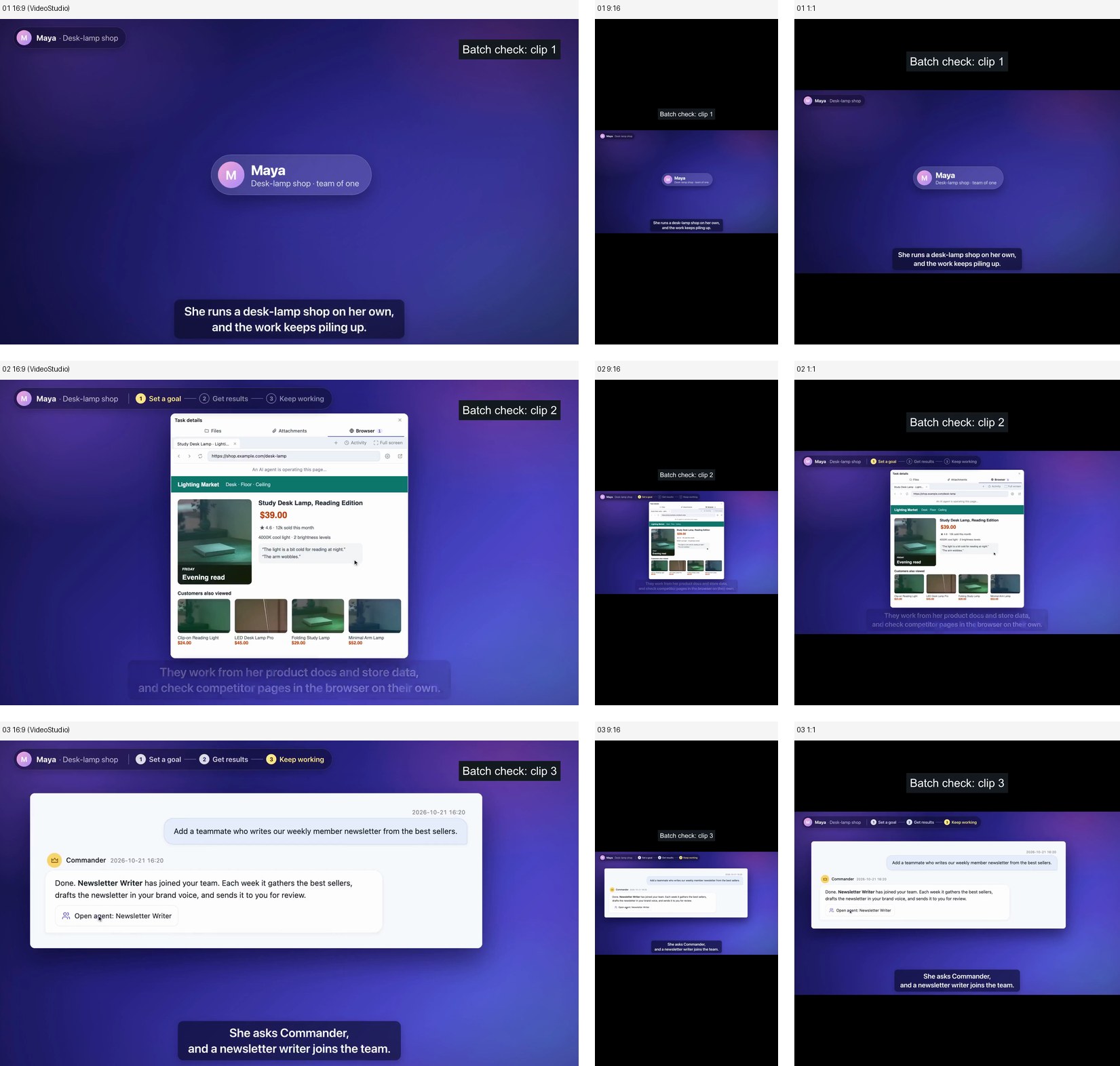
Batch video editing applies one set of instructions to several source videos, then exports a separate result for each. In this Orkas example, three short clips became nine MP4s: landscape, vertical and square versions, with consistent cut points and timed annotations. VideoStudio handled the footage edits; Claude Code completed the format changes with local FFmpeg commands.
If you make product demos, course clips or social posts, start with a small batch you can inspect. Compare the nine exports, copy the task or download the sample inputs.
The case: three inputs, nine deliverables
We used three four-second excerpts from Orkas’s existing product demo. These are short, controlled samples from one video, rather than three customer campaigns. Each source already contains on-screen text and burned-in subtitles.
| Brief | What we requested |
|---|---|
| Cut | Start at 0.25 seconds; keep 3.5 seconds from each input. |
| Formats | 16:9 at 1920 × 1080; 9:16 at 1080 × 1920; 1:1 at 1080 × 1080. |
| Framing | Preserve the complete picture without stretching. Fit it inside each new canvas with black padding. |
| Text | Add a supplied “Batch check: clip N” annotation from 0.4 to 3.4 seconds. Keep it away from the existing subtitles. |
| Files | Keep originals unchanged. Name outputs by clip and aspect ratio, and report each result. |
| Recovery | Test a truncated copy of clip 02, then retry only that item using its valid original. |
All nine finished files are 3.5-second, 30fps H.264 MP4s with AAC audio. The added text is a supplied test annotation, not automatically transcribed speech. No new paid image, video or voice-generation service was used; existing model access and computer costs are separate.
Compare and download the nine exports
Play the first set below. Open clips 02 and 03 to inspect the other six files. The original subtitles remain inside the picture; the vertical and square annotations sit in the upper black margin.
Clip 01
16:9
Download clip 01 · 16:9
9:16
Download clip 01 · 9:16
1:1
Download clip 01 · 1:1
Open clip 02: landscape, vertical and square
16:9
Download clip 02 · 16:9
9:16
Download clip 02 · 9:16
1:1
Download clip 02 · 1:1
Open clip 03: landscape, vertical and square
16:9
Download clip 03 · 16:9
9:16
Download clip 03 · 9:16
1:1
Download clip 03 · 1:1
For the complete file list and specifications, download the results CSV or results JSON. The sample input ZIP contains three source clips and their supplied annotation files.
How the agents completed the batch
- Give the batch one brief. Tell Orkas which files to edit, the cut points, output formats, caption rules and where to save the exports. Ask Commander to coordinate VideoStudio with a coding agent where useful.
- Edit the footage with VideoStudio. In this run, VideoStudio produced the three 16:9 versions using its local trim and subtitle operations, then reported the result for each input.
- Use a coding agent for the format transformation. Claude Code, running inside Orkas, wrote and ran local FFmpeg commands to scale the same cuts proportionally and pad them into vertical and square canvases. It then used the installed subtitle operation to place the supplied annotations in the upper margin.
- Inspect the exports and retry the affected item. The work includes checking actual files, rather than only collecting completion messages. Keep successful versions and reuse a valid source when one input fails.
This was an agent-coordinated workflow using video tools and coding assistance. The nine files came from two stages: three landscape exports by VideoStudio, followed by six format variants completed by Claude Code. The downloadable examples show what that combination produced.
Padding keeps the picture; cropping makes it larger
For these recordings, preserving every word mattered more than filling the frame. Padding keeps the entire 16:9 picture, with space above and below it. On a vertical canvas, that picture occupies about a third of the height, so small interface text can be hard to read on a phone.
For a product close-up or a talking head, a crop may be a better brief: ask the agent to keep the product or face visible and review a sample before applying the crop across the batch. This case demonstrates padding. A subject-tracking crop needs its own framing review.
Make that decision before processing. “Make it vertical” leaves the agent to choose between keeping the full picture and filling the frame. Specify the desired result and what must stay visible.
Copy a batch video editing task
Help me edit the videos in [input folder] as one small batch.
Coordinate VideoStudio and a coding agent when useful.

For each input:
- Start at [time] and keep [duration].
- Export [16:9, 9:16 and 1:1] MP4 versions.
- Framing: [keep the whole picture with padding / use an approved crop].
- Preserve [the product, face, existing text and subtitles].
- Use the matching supplied caption or annotation file, if present.
- Adjust its position for each format and check that it remains readable.
- Keep the original files unchanged.

Use existing video tools and write local processing commands where helpful.
Save new files in [output folder], named by input and format.
Report each output or failure with its filename and specifications.
If one input fails, preserve successful files and retry only that item
from a valid source. Tell me which steps you performed.

Use the supplied footage. Budget for new media-generation services: [amount].
Check the exports for duration, framing, captions and audio before delivery.
Download the task as plain text. If you need new narration or translated captions, specify the language and approve the relevant service budget. This case uses existing audio and supplied annotations.
What was checked, and what failed
Files and picture: the nine exports have the requested dimensions, 3.5-second duration and an audio track. Four time points per output were inspected: 0.1, 1, 3.3 and 3.45 seconds. On the six padded versions, frame comparisons also checked that the complete fitted picture was preserved and the added annotation stayed in the margin.
Subtitle placement: an earlier trial placed the new label over existing burned-in subtitles. Moving the supplied annotation fixed the reviewed samples. The final vertical and square versions place the label in the top padding, visible during the supplied 0.4–3.4-second interval.
Failure and retry: VideoStudio completed clips 01 and 03, then rejected a truncated copy of clip 02 without leaving a deliverable. Retrying from the existing valid clip 02 succeeded. Hash checks confirmed that the source clips and previously successful files remained unchanged. This recovered from a bad input copy; it did not repair the corrupted file.
Scope: these are short excerpts from one demo, processed on macOS. The review sampled frames; it did not include continuous human playback and listening, a Windows run, speech transcription or a large overnight batch. A native persistent queue and unattended recovery were not tested. Review your full exports before using them in a campaign.
Choose the right starting point
For supplied footage and repeatable export instructions, start with VideoStudio in Orkas and ask Commander to involve a coding agent for processing steps. For a new product video, start with the product-video prompt and shot-list example. For the official connected CapCut route, see the CapCut ChatGPT workflow guide.
CapCut’s “batch edit” questions can also refer to changing multiple text or caption items inside one project. This guide focuses on separate output files from multiple inputs. The files here can be reviewed or taken into your preferred editor.
Batch video editing questions
What is batch video editing?
Batch video editing applies shared editing instructions to multiple source videos and exports a separate result for each. Specify the cut, framing, output formats, captions and filenames before processing.
Can Orkas edit several videos into different formats?
This case produced nine MP4s from three short inputs. VideoStudio made the three landscape edits; Claude Code in Orkas used FFmpeg and the installed subtitle operation for the vertical and square variants. Start with a small batch and inspect the files.
Will a vertical version crop my original video?
The example uses proportional scaling and black padding to preserve the whole picture. A crop fills more of the frame but can remove text or a subject, so specify which result you want and review the framing.
Were the subtitles generated automatically?
No. The source clips already contain burned-in subtitles. The added Batch check labels came from supplied annotation files and were positioned for each output canvas. Automatic transcription was not tested.
What happens if one video in the batch is damaged?
In this run, a truncated copy of clip 02 failed without producing a deliverable. Retrying only that item from its existing valid original succeeded, while other completed files stayed unchanged. This does not establish unattended automatic recovery.
Does this produce a CapCut project?
This workflow produces separate MP4 files, supplied annotation files and a results list. A native editable CapCut project was not part of the case. You can review the exports or bring them into your preferred editor.